Edit and manage members
Overview
This guide covers keeping your member list up to date — editing a member’s personal details, changing their access, showing or hiding no-access members, and how the active-member limit works.
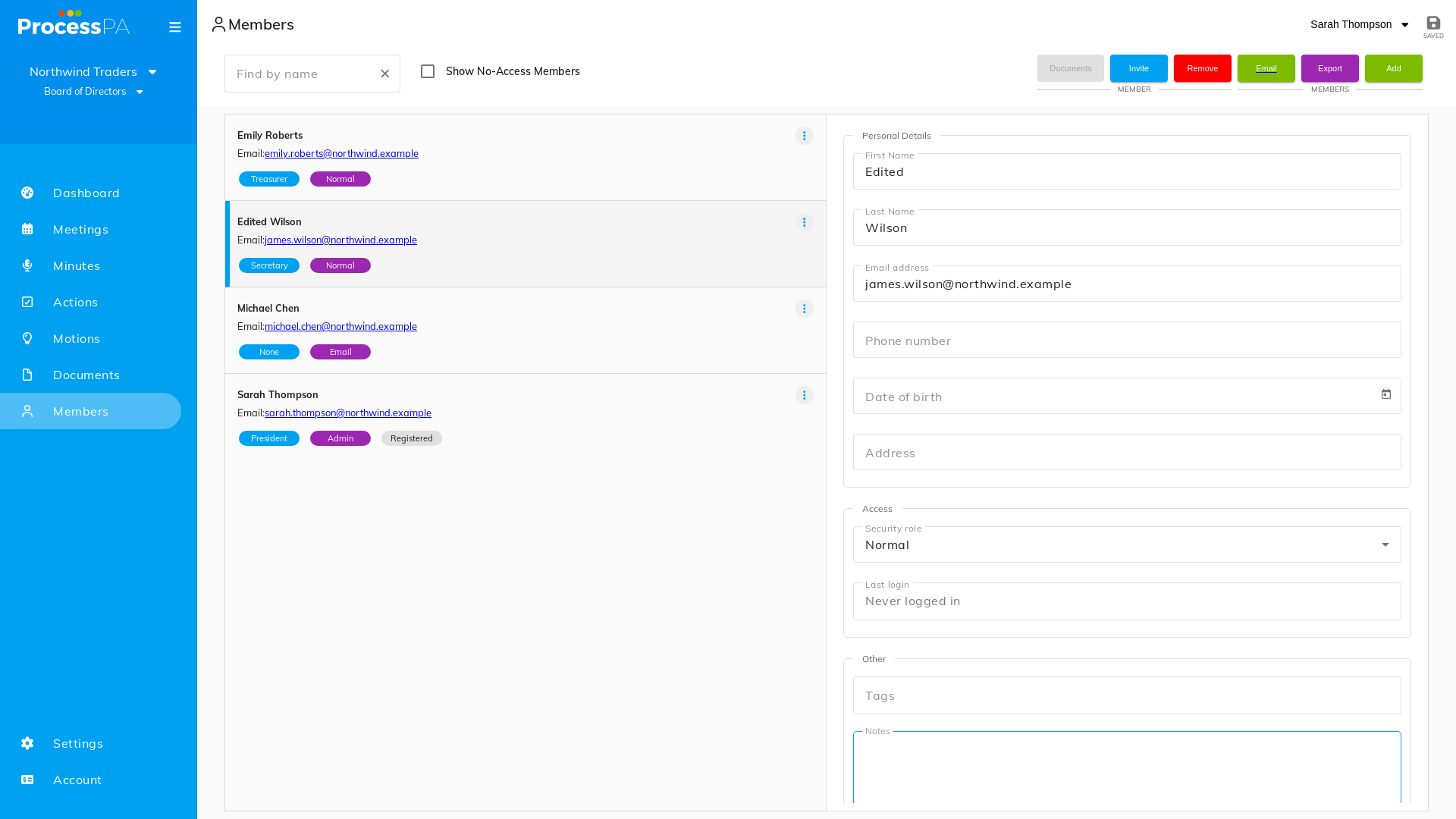
Edit a member’s details
- Open the Members register from the menu bar.
- Select the pencil icon next to the member you want to change.
- Update their name, email, access level or committee role.
- Save your changes.
Members can also update their own personal details once they’re logged in.
What the member register holds
The Members register is a full record for each person, not just a name and email:
- Personal details — phone, date of birth and address, plus a free-text Notes field for anything else (skills, availability, reason for leaving).
- Tags — label members to suit your organisation, for example Parent / Staff / Community, Paid / Volunteer, or Ordinary / Voting / Life Member.
- Role terms — record the role a member held and the period they held it, keeping a full history of your committee. The current role shows on the Members list.
- Attachments — store documents against a member, such as ID copies, blue-card or police checks, or signed membership forms.
Email your members
From the Members page, administrators can email members using their own email application:
- Select Email to add all members to the BCC field of a new email.
- Or click an individual member’s address to start an email to just that person.
Member email addresses are only visible to Administrators — Normal and Email-only members don’t see them.
Show or hide no-access members
Members set to No-access remain in your records but can’t sign in. To keep the list tidy you can show or hide them:
- On the Members register, use the show/hide no-access control.
- Hidden no-access members are still there — they’re just filtered out of the everyday view, and can be shown again at any time.
This makes “No-access” a useful alternative to deleting someone: their history stays intact and they can be reactivated later by changing their access level.
The active-member limit
A committee can have up to 100 active members. Active members are those who can sign in or receive content as part of the committee.
- Once a committee reaches 100 active members, adding another active member is blocked.
- You can still add inactive (No-Access) members beyond that point.
- If you need more active members, set some to No-access, or contact support@processpa.com.
Tips
- Changing a member’s access level takes effect immediately.
- Deleting a member removes their details; setting them to No-access keeps the record. Prefer No-access.
Video
Page Details
Updated on July 16th, 2026