Preview and download the PDF
Overview
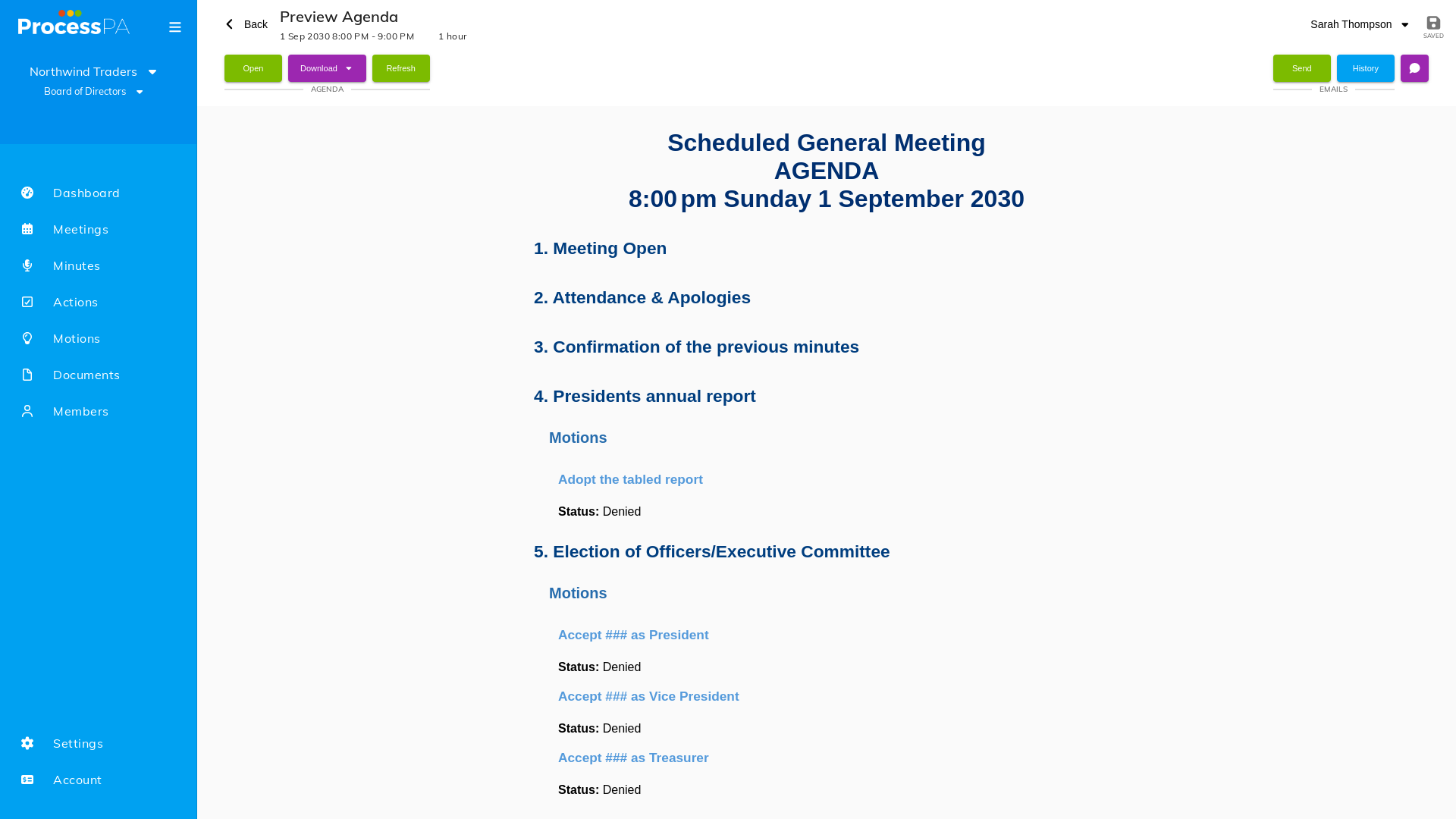
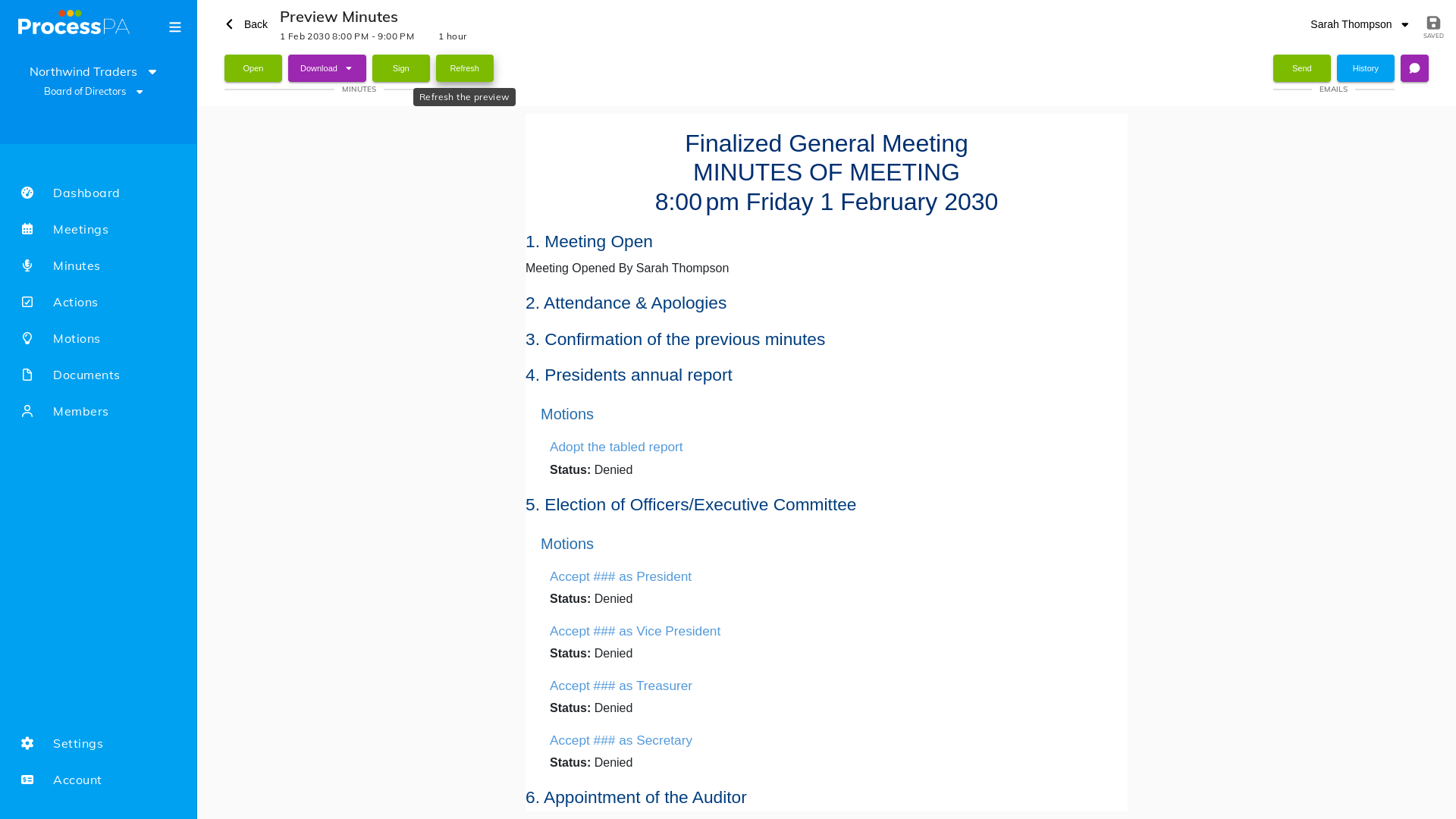
Before sending anything, you can preview a meeting on screen and download a PDF. For a scheduled meeting this is the agenda; for a completed meeting it’s the minutes. The generated PDF matches the on-screen preview exactly, so what you see is what your members receive.
Step-by-Step Guide
1. Preview on screen
- Open the meeting.
- Choose to preview it. A scheduled meeting shows its agenda; a completed meeting shows its minutes.
- When you’re done, navigate back to the meeting.
2. Download the PDF
- From the preview, choose to download the PDF.
- The agenda PDF (or minutes PDF) is generated and downloaded, matching the preview you just saw.
Good to know
- The same PDF is attached automatically when you email the agenda or minutes, so recipients always get a copy that matches the preview.
- Agenda emails also include a calendar invite and a ZIP pack of any attached documents. See Agenda and minutes attachments.
Related
Video
Video
Page Details
Updated on July 16th, 2026