View past minutes
Overview
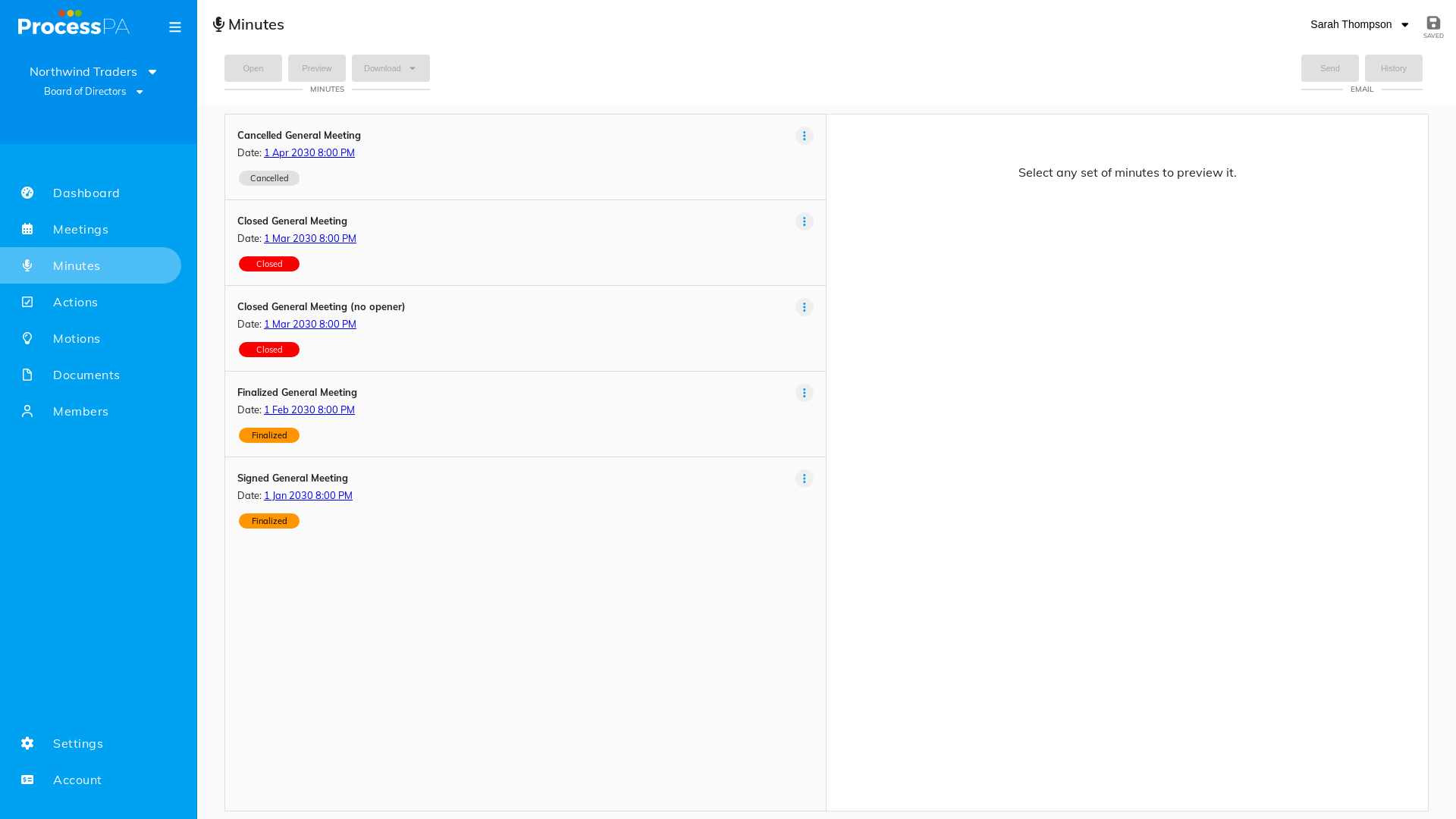
The Minutes page is your committee’s history of completed meetings. Every meeting you have closed appears here, and selecting one shows its full minutes.
Step-by-Step Guide
1. Open the Minutes page
- From the menu bar, select Minutes.
- You’ll see a list of your completed meetings.
2. Open a meeting’s minutes
- Select the meeting you’re interested in.
- Its minutes are displayed, including attendance, motions, action items and notes exactly as recorded.
3. Preview or download
- From a completed meeting you can preview the minutes on screen and download the matching PDF. See Preview and download the PDF.
Good to know
- Completed meetings can’t be deleted by users — this protects the continuity of your records. If you need one removed, contact support@processpa.com.
- Minutes from completed meetings can still be edited and redistributed, though new action items and motions can’t be added after finalization.
Related
Video
Page Details
Updated on July 16th, 2026